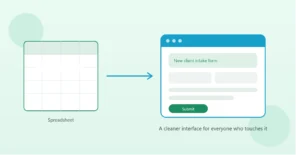
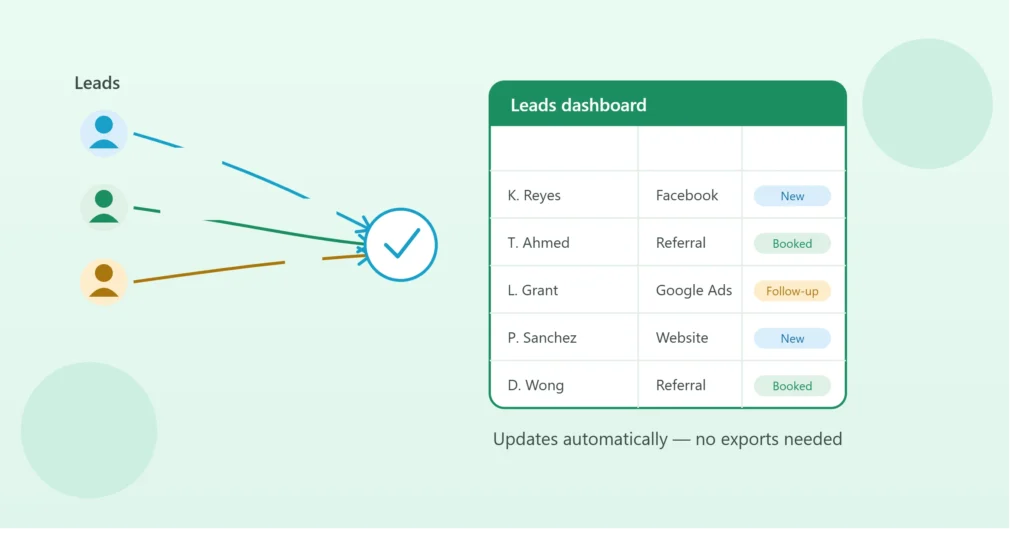
GoHighLevel is a strong all-in-one platform for managing leads, pipelines, and marketing — but it’s not always the easiest place to build custom reports, share data with a partner who doesn’t have CRM access, or create the kind of flexible dashboard a growing team needs. That’s where syncing GoHighLevel with Google Sheets comes in: it gives you the lead and pipeline data you already have in GHL, in a format you can shape, share, and analyze however you need.
Here’s how the sync works, what it’s useful for, and how to set it up without needing to be a developer.
Why Sync GoHighLevel to Google Sheets?
GoHighLevel is built to manage the relationship with a lead — pipelines, automations, messaging. It’s not really built to be a flexible reporting tool. Common reasons businesses sync GHL data into Sheets include:
- Building a custom KPI dashboard that GHL’s native reporting doesn’t offer
- Sharing lead or pipeline data with someone who doesn’t have (or need) a GHL login — a business partner, a lender, an assistant
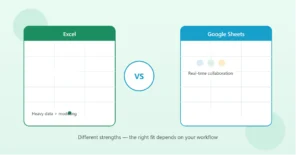
- Combining GHL lead data with data from other sources, like Excel-based financial tracking or a separate booking system
- Running custom calculations or forecasts that go beyond what GHL’s dashboard supports
Rather than exporting a CSV by hand every time someone asks for updated numbers, a sync keeps the sheet current automatically.
How the Sync Works
There are two common approaches, depending on your technical comfort and how real-time you need the data to be.
1. Native workflow automations inside GoHighLevel GoHighLevel has built-in automation workflows that can trigger on events like “new lead created” or “opportunity stage changed.” These workflows can send data to external tools via webhooks — which is the connection point most syncs use.
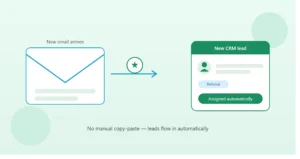
2. Zapier (or a similar automation platform) For most non-developers, this is the simplest path. Zapier can watch GoHighLevel for a trigger — a new contact, an updated opportunity, a tag being added — and automatically create or update a row in a connected Google Sheet. No code required, and most of the setup is point-and-click through Zapier’s interface.
3. Direct API integration For more advanced or high-volume use cases, GoHighLevel’s API can be connected directly to a script (similar to the Google Apps Script approach covered in our automation guide) for a faster, more customizable sync — particularly useful if you need two-way syncing or complex field mapping.
What You Can Sync
A typical GoHighLevel-to-Sheets setup keeps the following updated automatically:
- Contact name, email, phone
- Lead source / campaign
- Pipeline and current stage
- Opportunity value
- Tags
- Date created / last activity
- Assigned team member
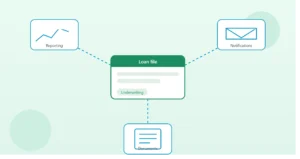
Once this flows into Sheets automatically, it becomes the foundation for a live dashboard — pipeline value by stage, lead volume by source, conversion rates over time — without anyone manually pulling numbers from GHL each week.
A Simple Example
Say a mortgage broker uses GoHighLevel to manage inbound leads, but wants a weekly view of pipeline value by stage to share with a business partner who isn’t in the CRM day-to-day.
With a sync in place: every time a lead moves stages in GoHighLevel, the corresponding row in Google Sheets updates within minutes. The partner opens a shared Google Sheet (or a linked dashboard) and sees current numbers — no CSV export, no “can you send me the latest numbers” message, no stale data from two weeks ago.
Setting This Up: High-Level Steps (Zapier Approach)
- Create a Zapier account and connect both GoHighLevel and Google Sheets as apps
- Choose a trigger in GoHighLevel — for example, “New Opportunity” or “Contact Updated”
- Map the fields you want (name, email, stage, value, etc.) to specific columns in your Google Sheet
- Test the zap with a real or sample lead to confirm data lands in the right columns
- Turn the zap on — from this point, new leads or updates flow into your sheet automatically
For businesses with a small number of straightforward triggers, this can often be set up in under an hour. More complex needs — multiple pipelines, conditional logic, two-way updates — benefit from more careful planning.
Common Mistakes to Avoid
Syncing too much, too soon. Start with the fields that actually drive your reporting. Every additional field is another thing that can break or need remapping later.
No duplicate protection. Without care, a sync can create a new row every time a contact is updated, rather than updating the existing row. Make sure your setup matches on a unique identifier (like contact ID) rather than name alone.
Treating the sheet as the source of truth. If your sync is one-directional (GHL → Sheets), remember that edits made directly in the sheet won’t flow back into GoHighLevel. Keep GHL as the actual source of truth for lead data, and treat the sheet as a reporting layer.
Not testing edge cases. What happens if a required field is blank in GoHighLevel? Test a few imperfect leads before trusting the sync with live data.
When This Is Worth Setting Up
If you’re currently exporting GoHighLevel data by hand more than once a month — or fielding “can you send me the latest numbers” requests from a partner, lender, or team member — a sync usually pays for itself quickly in time saved and reduced back-and-forth.
If you’d like your GoHighLevel pipeline connected directly to a custom Google Sheets or Excel dashboard, book a free 15-minute call and we’ll map out exactly what data should flow where.