If you run the same report in Google Sheets every week — pulling numbers, formatting a summary tab, then emailing it to your team or clients — you’ve probably already thought “there has to be a faster way.” There is. Google Apps Script, a free automation tool built directly into Google Sheets, can handle the entire process for you, from calculating the numbers to sending the finished report by email, without you touching the spreadsheet.
This guide walks through what Apps Script can actually automate, how it works at a high level, and where it makes the most sense to use it.
What Is Google Apps Script?
Apps Script is Google’s built-in scripting platform, available for free inside every Google Sheet (Extensions → Apps Script). It uses JavaScript, so if you or your team have any coding background, it’s approachable. But even without prior coding experience, many common automations follow well-documented patterns that don’t require starting from scratch.
Unlike Excel macros, which run locally on one machine, Apps Script runs in the cloud — meaning it can trigger on a schedule, respond to form submissions, or run even when your laptop is closed.
What You Can Automate in a Google Sheets Report
Here are the most common report-automation tasks Apps Script handles well:
1. Scheduled report generation Instead of manually refreshing formulas or copying data into a summary tab, a script can run automatically every morning, every Monday, or at month-end — pulling fresh data, recalculating totals, and updating your report tab without anyone opening the file.
2. Automatic email delivery Once the report is ready, Apps Script can email it directly — either as a PDF attachment, a summary in the email body, or a link to the live sheet — to a defined list of recipients, on a schedule you set.
3. Data cleanup and formatting Scripts can auto-format new data as it comes in: standardizing date formats, removing duplicate rows, applying conditional formatting, or flagging incomplete entries — all before the report is generated.
4. Combining data from multiple sheets If your reporting pulls from several source tabs (or even several separate spreadsheets), Apps Script can consolidate that data into one clean report automatically, rather than relying on manual copy-paste or fragile IMPORTRANGE formulas that break silently.
5. Custom alerts and thresholds A script can check your data against a threshold — like sales dropping below a target, or a KPI falling out of range — and automatically send a notification when that happens, rather than someone noticing it during a routine review.
A Simple Example: Weekly Sales Summary
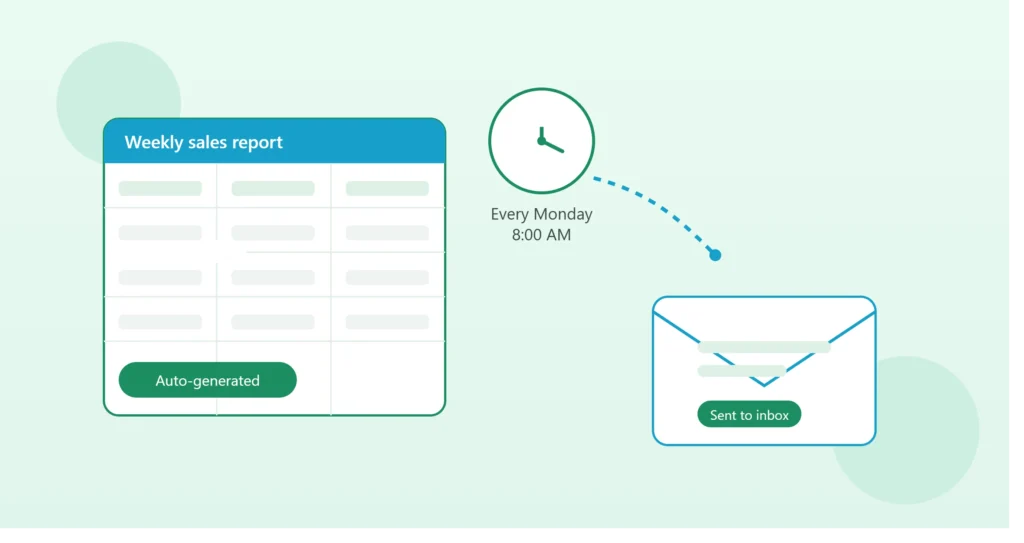
Consider a weekly sales report that currently takes 30–45 minutes to prepare by hand: pulling numbers from a raw data tab, updating a pivot table, formatting it for readability, and emailing it to three people every Monday morning.
With Apps Script, this becomes:
- A trigger runs automatically every Monday at 8 AM
- The script recalculates the pivot summary from the latest raw data
- It formats the numbers (currency, percentages, conditional highlighting)
- It converts the summary tab to a PDF
- It emails that PDF to the three recipients, with a pre-written subject line and message
The person who used to spend 30–45 minutes on this now spends zero — the report is already in their inbox when they check email Monday morning.
Getting Started (High-Level Steps)
If you want to try building a basic automation yourself:
- Open your Google Sheet, go to Extensions → Apps Script
- This opens a code editor where you write JavaScript functions
- Use built-in Sheets services (
SpreadsheetApp) to read and write data - Use
MailApporGmailAppto send emails directly from the script - Set up a time-driven trigger (under the clock icon in the Apps Script editor) to run your function automatically on a schedule
For simple use cases — sending a static report every week — this can often be built in an afternoon. More complex automations (multi-sheet consolidation, dynamic thresholds, conditional logic) benefit from more careful planning around error handling and edge cases.
Where Apps Script Has Limits
Apps Script is powerful, but it’s not the right fit for everything:
- Very large datasets can hit execution time limits (Google caps script runtime), so heavy data processing sometimes needs a different approach.
- Real-time, two-way syncing with external systems (like a CRM) usually works better through a dedicated integration than a Sheets-only script.
- Complex, multi-step workflows involving several tools benefit from a more structured automation setup rather than a single script trying to do everything.
None of these are reasons to avoid Apps Script — they’re just signals for when it’s worth pairing it with additional automation rather than relying on it alone.
Common Mistakes to Avoid
No error handling. If a script fails silently — say, a source tab is renamed and the script can’t find it — nobody finds out until the report simply doesn’t arrive. Build in basic checks, like an email alert if the script errors out.
Hardcoding values that change. Sheet names, cell ranges, and recipient lists should reference a settings section of the spreadsheet, not be typed directly into the script — otherwise every small change requires editing code.
Skipping a test run. Always test a new automation manually a few times before trusting it to run unattended, especially anything that emails people automatically.
When It’s Worth Setting Up
If a report takes more than 15–20 minutes to prepare manually and needs to happen on a recurring schedule, it’s usually a strong candidate for Apps Script automation. The time saved compounds — a 30-minute weekly report is over 25 hours a year of manual work eliminated.
If you’d like a report like this automated for your own Google Sheets or Excel workflow, or want help combining Apps Script with your CRM or KPI dashboard, book a free 15-minute call and we can map out what to automate first.