
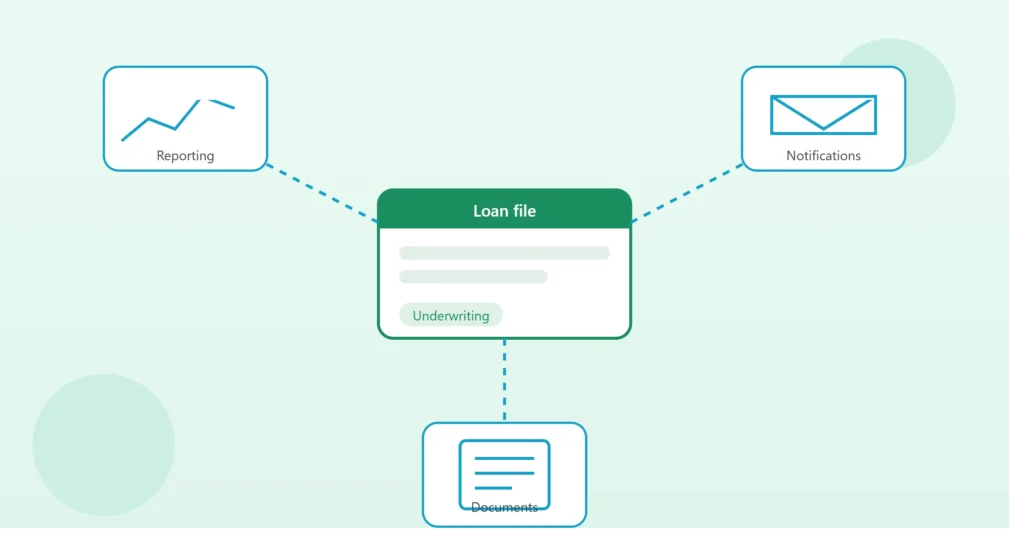
Arive is built specifically for mortgage professionals, which makes it a strong fit for loan origination compared to a generic CRM. But even a purpose-built LOS/CRM still leaves gaps: data that needs to be re-entered elsewhere for reporting, manual updates to a spreadsheet for a lender or partner who isn’t in Arive, or repetitive tasks that Arive handles well individually but doesn’t automate end-to-end without some extra setup.
Automating around Arive — rather than replacing it — is usually the more practical approach, and it’s where most of the real time savings come from.
What Arive Already Handles Well
Before talking about automation, it’s worth being clear about what Arive is genuinely good at natively: loan file management, document collection, compliance tracking, and pipeline visibility within the platform itself. If your workflow lives entirely inside Arive and never needs to interact with anything outside it, you may not need much additional automation at all.
The gaps tend to show up at the edges — where Arive data needs to reach a spreadsheet, a partner outside the platform, or a reporting tool Arive doesn’t natively provide.
Common Automation Opportunities Around Arive
1. Syncing Arive data into Excel or Google Sheets for reporting Arive’s built-in reporting covers a lot, but custom dashboards, forecasts, or reports formatted for a specific lender or business partner often still need to live outside the platform. Automating this sync — rather than manually exporting and reformatting data — keeps external reports current without recurring manual work.
2. Connecting Arive to marketing/lead tools If leads originate outside Arive (a website form, a marketing CRM, a referral partner’s email), automatically creating the corresponding file in Arive — rather than manually re-entering borrower details — removes one of the most common points of delay between “lead exists” and “loan file is actually open.”
3. Automated status notifications While Arive tracks stage internally, automatically notifying referral partners, real estate agents, or borrowers when a file moves to a new stage (via email or a connected messaging tool) keeps everyone informed without someone manually sending updates.
4. Commission and volume reporting Pulling closed-loan data from Arive automatically into a commission calculator or monthly volume report (similar to the Excel automation tasks covered here) removes manual re-entry at the point where accuracy matters most.
5. Document and task reminders Automated reminders for missing documents or upcoming deadlines — triggered off Arive’s own status fields — can reduce the number of files that stall simply because a follow-up task was missed in a busy week.
How the Automation Typically Works
Most Arive automation relies on one of two approaches:
API-based integration Arive offers API access for syncing data with external systems. This is the most reliable way to build a two-way or scheduled sync between Arive and an external spreadsheet, dashboard, or CRM — particularly useful for anything that needs to run automatically and consistently.
Automation platforms (Zapier and similar) For simpler, single-trigger automations — like creating a task when a file reaches a certain stage, or sending a notification on status change — a no-code automation platform can often connect Arive to email, Slack, or a spreadsheet without custom development.
Which approach makes sense depends on complexity: a single trigger-based notification is usually fine with a no-code tool, while a full reporting sync with multiple fields and consistent scheduling is usually more reliable built through the API directly.
A Simple Example
Consider a broker who currently exports Arive pipeline data once a week to update an Excel report shared with a business partner. That export takes 20–30 minutes, and by the time it’s shared, the numbers are already a few days old.
With an automated sync in place: pipeline data flows from Arive into the Excel or Google Sheets report automatically, updating within the hour of any change in Arive. The partner sees current numbers without waiting for a weekly export, and the 20–30 minutes previously spent exporting and formatting is eliminated entirely.
Getting Started
- Map where data currently leaves Arive manually. Exports, copy-paste into other tools, manually forwarded updates — these are your automation candidates.
- Prioritize by frequency and time cost. A task done daily that takes 10 minutes is often a better first automation than something done monthly that takes an hour.
- Check what Arive’s API supports for the specific data you need to sync.
- Start with one automation, confirm it’s reliable, then expand. Trying to automate everything around Arive at once increases the risk of something breaking silently.
Common Mistakes to Avoid
Automating a broken process. If the underlying workflow is inconsistent (different loan officers using different stage names, for example), automating around it just moves the inconsistency faster. Clean up the process first where possible.
No visibility into failures. An automation that fails silently — because Arive changed a field, or an API call timed out — can leave a report or notification simply not happening, with nobody aware until someone notices the gap.
Trying to replace Arive rather than extend it. The goal isn’t to move core loan management out of Arive; it’s to remove the manual work that happens around it.
When This Is Worth Setting Up
If your team is manually exporting, re-entering, or reformatting Arive data more than once a week, that’s a strong signal there’s automation worth building. The time saved compounds, and — as with most CRM-adjacent automation — the bigger value is often in the reduced delay and reduced error rate, not just the time itself.
If you’d like help automating around your Arive workflow — syncing data to a custom dashboard, connecting lead sources, or automating reporting — book a free 15-minute call and we’ll map out where the biggest time savings are for your specific setup.