For a lot of brokers and small business owners, leads don’t start in a CRM — they start as an email. Someone fills out a form, a referral partner sends an introduction, or a prospect replies to a cold outreach message, and it all lands in Outlook first. The problem is what happens next: manually copying that person’s name, email, and details into your CRM, one email at a time, often hours or days after the email actually arrived.
Automating this — so leads flow from Outlook into your CRM without manual entry — closes one of the most common gaps between “a lead exists” and “a lead is actually being worked.”
Why This Gap Matters
Every manual step between a lead arriving and a lead being followed up on is a chance for it to get missed, delayed, or handled inconsistently. A lead sitting in an inbox isn’t visible in your pipeline, isn’t part of your reporting, and isn’t triggering any of the follow-up sequences your CRM might otherwise handle automatically.
Response time is also a real factor — research on lead response consistently shows that follow-up speed strongly affects conversion. If a lead sits in Outlook until someone has a free ten minutes to manually enter it, that delay is working against you before the CRM even gets involved.
How the Automation Works
There are a few common approaches, depending on your CRM and how much control you want over which emails get imported.
1. Native email-to-lead capture (many CRMs support this) Platforms like GoHighLevel, Bonzo, and others often provide a unique forwarding email address or Outlook add-in. Emails sent to that address, or flagged inside Outlook, are automatically parsed and created as new leads — usually extracting name, email, and message content automatically.
2. Outlook rules + automation platforms (Zapier, Power Automate) You can set up an Outlook rule that flags incoming emails matching certain criteria (from a specific form-notification address, containing certain keywords, or arriving in a specific folder). A connected automation platform then watches for that trigger and creates a corresponding lead in your CRM, pulling relevant fields from the email.
3. Direct API integration For more advanced or high-volume needs, a custom script can monitor an Outlook inbox via Microsoft’s Graph API and create CRM leads directly through the CRM’s API — giving the most control over field mapping and logic, at the cost of more setup work upfront.
What Gets Automated
A well-set-up Outlook-to-CRM automation typically handles:
- Creating a new contact/lead record automatically when a qualifying email arrives
- Populating name, email address, and phone number (if present in the email signature or body)
- Tagging the lead with a source (e.g., “Referral,” “Website Form,” “Cold Outreach”) based on which inbox rule or sender pattern triggered it
- Assigning the lead to the right pipeline or team member
- Triggering any automated follow-up sequence your CRM already has set up for new leads
A Simple Example
Say a referral partner regularly emails new client introductions directly to your Outlook inbox. Without automation, each one requires manually reading the email, copying details, opening the CRM, and creating a new lead — a few minutes each time, but easy to delay when the inbox is busy.
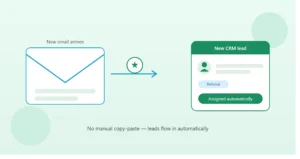
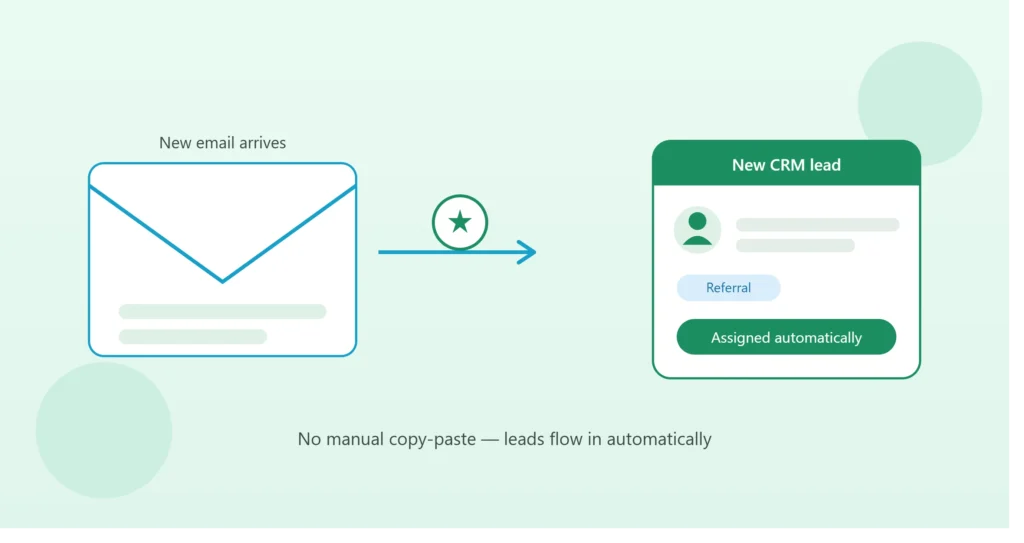
With an Outlook rule and automation in place: any email from that referral partner’s address is automatically flagged, parsed, and creates a new CRM lead within minutes — tagged as “Referral,” assigned to the right pipeline stage, with the original email content saved as a note. The person is now in your pipeline and receiving whatever automated welcome sequence you’ve set up, without anyone having to remember to enter them.
Setting This Up: High-Level Steps
- Identify the specific email patterns you want to automate — a sender address, a subject line pattern, or a specific folder emails land in after a form submission
- Check whether your CRM has native email capture first (many do, and it’s the simplest option)
- If not, set up an Outlook rule to flag or forward qualifying emails
- Connect an automation platform (Zapier, Power Automate) to watch for that trigger and create the CRM lead
- Map the fields — name, email, phone, source tag — so information lands in the right place
- Test with a real email before relying on it fully
Common Mistakes to Avoid
Capturing everything, not just leads. Without careful filtering, you risk creating CRM contacts out of newsletters, internal emails, or spam. Be specific about which senders, subjects, or folders actually represent real leads.
No duplicate checking. If the same person emails twice, make sure your automation checks for an existing contact rather than creating duplicates every time.
Missing information not handled gracefully. Not every email will have a phone number or a clean name to extract. Decide what happens when a field is missing rather than letting the automation silently create incomplete or broken records.
Setting it up once and forgetting it. Referral sources change, form providers change, email formats change. A quick check every few months confirms the automation is still catching what it should.
When This Is Worth Setting Up
If you’re currently checking an inbox and manually creating CRM leads more than a few times a week, this is usually one of the highest-value automations to set up — not because it’s complex, but because the time saved is recurring and the response-time improvement directly affects how many of those leads actually convert.
If you’d like help connecting your Outlook inbox to your CRM — or auditing where else leads might be slipping through manual gaps — book a free 15-minute call and we’ll map out exactly what to automate first.